Your project gallery can be sorted to match the way you work. This article explains where the sorting control lives, what each option does, and how the app remembers your choice.
How to change the sort order
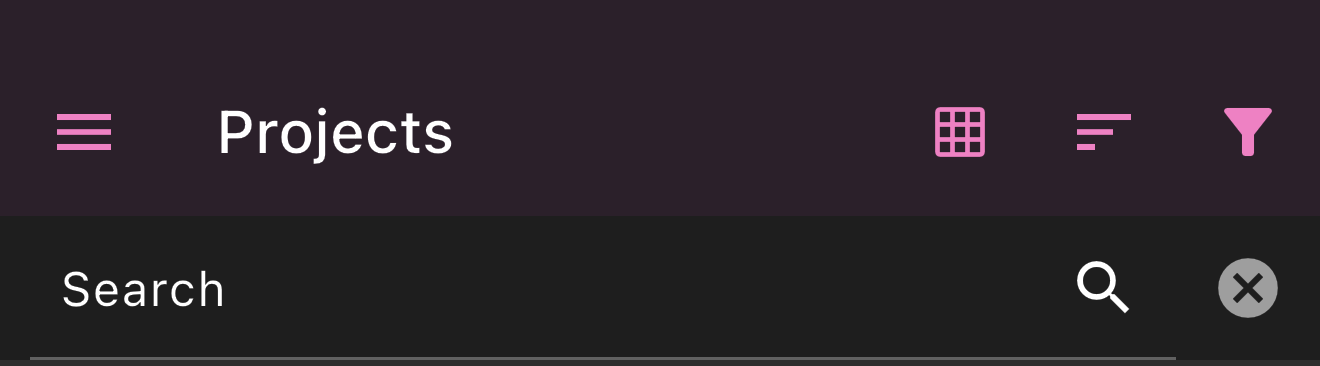
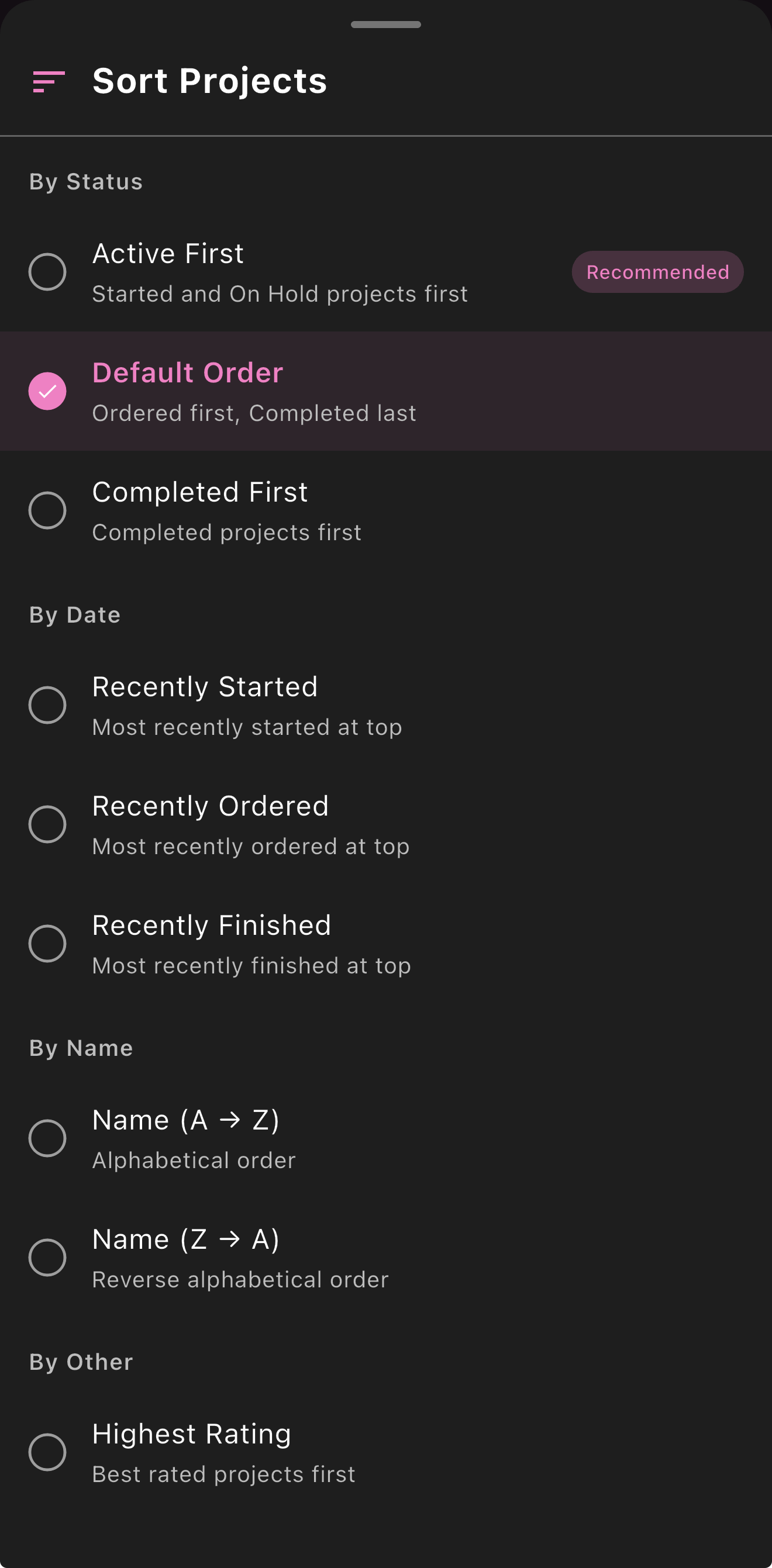
Open the Projects tab and look at the icons in the top-right corner. The middle icon (horizontal lines) opens the Sort Projects dialog. Tap any option to apply it immediately. The grid icon next to it switches the gallery layout, and the funnel icon opens filters.
Sorting by status
These options keep your gallery grouped into status sections and control the order of those sections:
- Active First (recommended): the projects you are working on come first. Sections appear as Started, On Hold, Received, Not Received, Wish List, and Completed at the end.
- Default Order: follows the natural life of a project. Wish List first, then Not Received, Received, Started, On Hold, and Completed last.
- Completed First: celebrates finished work. Completed projects at the top, then Started, On Hold, Received, Not Received, and Wish List.
Sorting by date
Date options turn the gallery into a single list without status sections, newest at the top:
- Recently Started: by the date you started stitching.
- Recently Ordered: by the date you ordered the kit.
- Recently Finished: by the date you completed the project.
Projects that do not have the relevant date yet move to the end of the list.
Sorting by name
- Name (A → Z): alphabetical order.
- Name (Z → A): reverse alphabetical order.
Other options
- Highest Rating: your best-rated projects first.
- Most Time Spent: projects with the most hours logged first.
Default choice and persistence
Out of the box the gallery uses Active First. When you pick a different option, GemsFlow remembers it: the gallery keeps your chosen order the next time you open the app.